Your email signature is the last thing people see in every message you send. Most people settle for a plain text name and phone number. But a well-crafted signature with a real handwritten touch can make you memorable, build trust, and look genuinely professional.
Whether you are a freelancer pitching clients, a sales rep closing deals, or just someone who wants their emails to look polished, your signature matters more than you think. Studies show that emails with professional signatures get higher response rates and are perceived as more credible.
In this guide, we will cover exactly what to include in your email signature, how to add a real handwritten signature image, and step-by-step setup instructions for Gmail, Outlook, and Apple Mail.
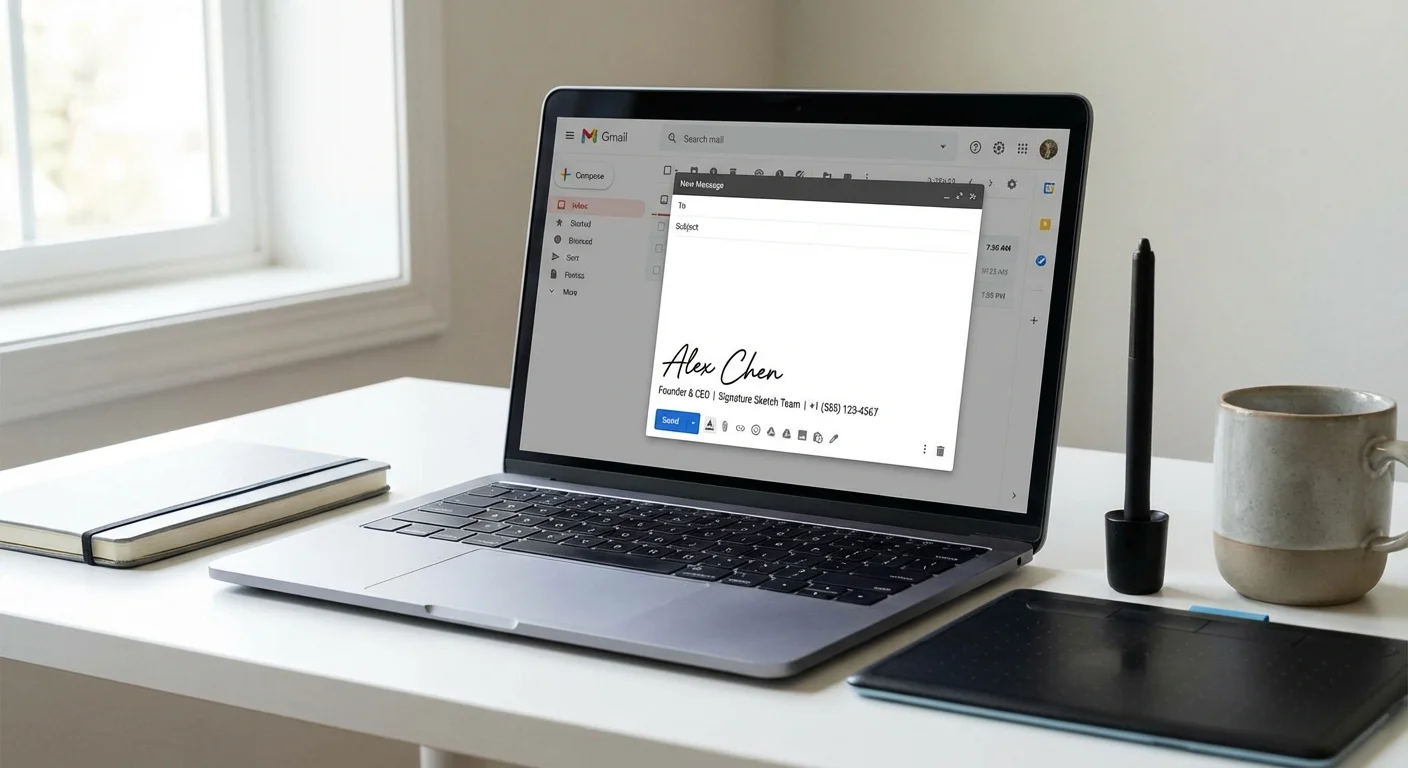
Why Your Email Signature Matters More Than You Think
The average professional sends 40 emails per day. That is 40 opportunities to make an impression, reinforce your brand, and provide your contact information without anyone having to ask for it.
- First impressions: When someone receives your email for the first time, your signature tells them who you are, what you do, and how to reach you.
- Brand consistency: A consistent signature across your team creates a unified, professional image for your company.
- Trust signal: A handwritten signature adds a human element that typed text simply cannot replicate. It says "a real person wrote this."
- Convenience: Recipients can call you, visit your website, or find you on LinkedIn without searching — it is all right there.
What to Include in a Professional Email Signature
Less is more. The best email signatures are clean, scannable, and contain only essential information. Here is what to include and what to skip:
Must-Have Elements
- Full name — Your first and last name, clearly readable.
- Job title — What you do. Keep it concise.
- Company name — Where you work, optionally linked to your website.
- Phone number — Direct line or mobile, with country code for international contacts.
Nice-to-Have Elements
- Handwritten signature image — A transparent PNG of your real signature adds a personal, premium feel.
- Company logo — Small, clean, and not oversized.
- Website URL — One link is enough. Do not list five different URLs.
- Social media — One or two relevant profiles (LinkedIn is usually the best choice for professionals).
What to Avoid
- Inspirational quotes — They look unprofessional in business emails.
- Too many social icons — Five social media links clutter the signature and distract from your contact info.
- Large images — Oversized logos or banners trigger spam filters and slow email loading.
- Legal disclaimers — Unless your company requires them, they add unnecessary bulk.
The 4-line rule
If your signature takes more than 4-6 lines of text (excluding the handwritten image), it is too long. Recipients should be able to glance at it and instantly find your name, role, and how to contact you. Everything else is noise.
How to Add a Handwritten Signature to Your Emails
This is the secret weapon that separates a good email signature from a great one. Instead of just typing your name, you include an actual image of your handwritten signature. It looks like you personally signed every email.
- Create your signature: Go to Signature Sketch and draw your signature using your mouse, trackpad, or touchscreen. Choose black or blue ink.
- Download as transparent PNG: Click "Download PNG". The transparent background is critical — it ensures your signature blends seamlessly into any email background.
- Insert into your email client: Add the PNG image to your email signature settings (detailed instructions for each client below).
The result? Every email you send looks like it was personally signed by hand. It is subtle, professional, and makes a real difference in how people perceive your messages.
Step-by-Step Setup: Gmail, Outlook, and Apple Mail
Gmail
- Open Gmail and click the gear icon → See all settings.
- Scroll down to the Signature section.
- Click "Create new" and name your signature.
- Type your name, title, company, and phone number.
- Click the image icon in the formatting toolbar to insert your signature PNG. You can upload it via Google Drive or paste a URL.
- Resize the image to a reasonable width (around 150-200px works well).
- Click Save Changes at the bottom of the page.
Outlook (Web and Desktop)
- Click the gear icon → View all Outlook settings.
- Go to Mail → Compose and reply.
- In the signature editor, type your contact details.
- Click the image icon to insert your signature PNG inline.
- Adjust the image size by clicking on it and dragging the handles.
- Set it as your default signature for new messages and replies.
- Click Save.
Apple Mail (Mac)
- Open Mail and go to Mail → Settings → Signatures.
- Select your email account and click the + button to create a new signature.
- Type your name, title, and contact info in the editor.
- Open your signature PNG in Finder, then drag and drop it directly into the signature editor.
- Uncheck "Always match my default message font" to preserve your formatting.
- Close the settings window — changes save automatically.
Email Client Signature Features Compared
Not all email clients handle signatures the same way. Here is a quick comparison:
| Feature | Gmail | Outlook | Apple Mail |
|---|---|---|---|
| Image support | Yes (via URL or Drive) | Yes (inline upload) | Yes (drag and drop) |
| Transparent PNG | Yes | Yes | Yes |
| Multiple signatures | Yes | Yes | Yes |
| HTML editing | Limited | Limited | Via workaround |
| Mobile sync | Separate mobile signature | Syncs across devices | Syncs via iCloud |
| Ease of setup | Easy | Easy | Easy |
Pro Tips for a Standout Email Signature
- Use blue ink for your handwritten signature: Blue stands out from black body text and signals authenticity. Learn why blue ink matters.
- Keep the signature image small: Around 150-200px wide is ideal. Too large and it dominates the email; too small and it is unreadable.
- Test on mobile: Over 60% of emails are opened on phones. Send yourself a test email and check how your signature looks on your phone.
- Use a separator line: A simple horizontal line or dash above your signature visually separates it from the email body.
- Match your brand colors: If your company uses specific colors, incorporate them subtly in your signature text or links.
- Update regularly: Changed your title or phone number? Update your signature immediately. Outdated info is worse than no info.
Who Benefits Most from a Handwritten Email Signature?
- Sales professionals: A personal touch in cold outreach emails increases reply rates. People respond to people, not templates.
- Freelancers and consultants: Your email signature is your business card. A handwritten signature adds credibility and personality.
- Executives and founders: A CEO's email with a handwritten signature feels more personal and approachable than a generic corporate footer.
- Real estate agents: Trust is everything in real estate. A handwritten signature in your emails builds rapport before the first meeting.
- Anyone who emails clients: If your work involves client communication, a polished signature with a personal touch sets you apart.
Frequently Asked Questions
Will the signature image show on mobile?
Yes, all major email clients (Gmail, Outlook, Apple Mail) display inline images in signatures on both desktop and mobile. Just make sure the image is not too wide — 150-200px is the sweet spot for mobile readability.
Does a signature image trigger spam filters?
A single small image (like a signature PNG) does not trigger spam filters. Problems arise when signatures contain multiple large images, excessive links, or tracking pixels. Keep it simple and you will be fine.
Can I use the same signature for personal and work emails?
You can use the same handwritten signature image, but adjust the text content. Your work signature should include your company and title, while a personal signature can be simpler — just your name and phone number.
How do I create a signature without a stylus?
A mouse or trackpad works perfectly. On Signature Sketch, draw your signature with your mouse — the tool captures natural stroke variation even without a stylus. You can also use your phone's touchscreen and sign with your finger.
Create Your Signature Now
Draw your handwritten signature, download the transparent PNG, and add it to your email in minutes. No account needed.
Start Drawing Now