You've probably tried the built-in Drawing tool in Google Docs. You clicked Insert → Drawing → New, picked the Scribble tool, and tried to sign your name with a mouse.
The result? A shaky, kindergarten-looking signature that you'd be embarrassed to put on any official document. You're not alone. This is the #1 complaint users have when trying to insert a signature in Google Docs.
What Makes a Good Digital Signature?
Before diving into the methods, let's define what we are aiming for. A professional digital signature should be:
- Clean and legible — no shaky mouse-drawn lines
- Transparent background — so it sits naturally over lines or text
- Consistent — reusable across all your documents
- Properly sized — not pixelated or blurry
⚠️ The native Google Docs Drawing tool fails on almost all of these points when used with a standard mouse.
Method 1: The Drawing Tool (The Flawed Approach)
This is what most basic tutorials tell you to do. While it's "built-in," it's rarely the best choice.
The Steps:
- Click where you want your signature.
- Go to Insert → Drawing → New.
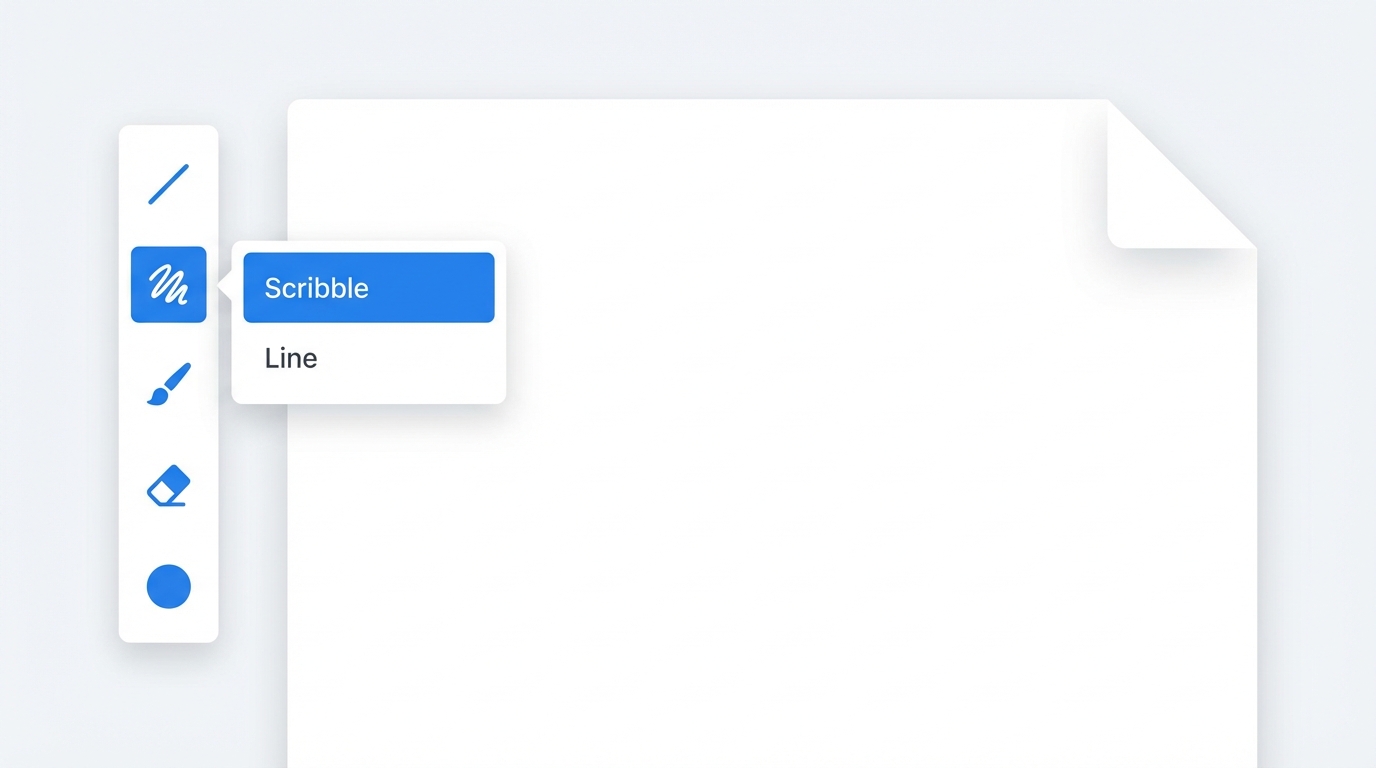
- Click the Line dropdown and select Scribble.
- Draw your signature with your mouse.
- Click Save and Close.
Why It's Problematic:
| Issue | Impact |
|---|---|
| Mouse precision is poor | Shaky, unprofessional lines that look fake. |
| No undo for strokes | You must delete the whole shape if you mess up one curve. |
| Limited editing | Very hard to refine thickness or style after drawing. |
Method 2: Create Externally + Import PNG (Recommended)
This is the method pros use. The key insight: Don't draw inside Google Docs. Create your signature in a dedicated tool, then import it as a transparent image.
Dedicated tools offer stroke smoothing algorithms.
No white box covering your document text.
Step 1: Create your signature
Use a tool like Signature Sketch to draw or type your signature. This ensures high resolution and perfect transparency.
Step 2: Export as Transparent PNG
This is critical. A JPEG will have a white background. A PNG will be transparent, allowing it to blend seamlessly into your document.
Step 3: Insert into Google Docs
- Click where you want the signature.
- Go to Insert → Image → Upload from computer.
- Select your PNG file.
Step 4: Set Text Wrapping
Once inserted, the image might break your text layout. Fix it by:
- Clicking the image.
- Selecting the "In front of text" icon in the floating menu.
- Dragging the signature to the exact position (e.g., on top of a signature line).
Method 3: Use the Simple Signature Add-on
If you prefer an all-in-one solution without leaving the tab, add-ons can help.
- Go to Extensions → Add-ons → Get add-ons.
- Search for "Simple Signature".
- Install the extension.
Note: Corporate or school Google accounts often block third-party add-ons for security reasons.
Method 4: Use a Handwriting Font (Quickest)
Need a signature in 30 seconds for an internal memo?
- Click Format → Paragraph styles or just use the Font menu.
- Select More fonts.
- Filter by Handwriting.
- Choose a script font like "Dancing Script" or "Great Vibes".
- Type your name and increase the font size.
Comparison: Which Method Should You Use?
| Method | Quality | Reusability | Best For |
|---|---|---|---|
| Drawing Tool | ⭐⭐ | Low | Quick drafts |
| External PNG | ⭐⭐⭐⭐⭐ | High | Professional docs |
| Add-on | ⭐⭐⭐⭐ | Medium | Regular signers |
| Handwriting Font | ⭐⭐ | High | Casual use |
Using Microsoft Word Instead?
If you are working with .docx files in Word rather than Google Docs, the process varies slightly regarding text wrapping and the drawing canvas.
👉 See our complete guide: How to Insert a Signature in Microsoft Word
Troubleshooting Common Issues
"My signature has a white background"
Solution: You likely saved it as a JPG. Re-export as a PNG with transparency enabled.
"I can't move my signature to the right spot"
Solution: By default, images are "Inline." Click the image and change text wrapping to "In front of text" to unlock free movement.
"The Drawing tool keeps crashing"
Solution: This is a known browser memory issue. Try refreshing the page or using the PNG import method described above.
Conclusion
The days of shaky, mouse-drawn signatures are over. By investing just one minute to create a high-quality transparent PNG, you'll have a professional signature ready to drag and drop into any Google Doc for years to come.